
Your iMasterWeb website is online, but does Bing know its pages? Bing Webmaster Tools lets you add your site, monitor indexing and understand its visibility in Bing. This guide explains the setup, the checks that confirm each step and how to turn the first results into useful actions.
Guide and screenshots checked on 20 October 2026. Labels may vary by language and product updates.
The simplest route: follow our Google Search Console setup guide first, import the verified site into Bing, check its sitemap and inspect key pages. Manual verification is available if you do not use Search Console.
In this guide
- Why set up Bing as well as Google?
- Before you begin
- 1. Sign in and add your site
- 2. Check or submit the sitemap
- 3. Inspect an important page
- 4. IndexNow: notify changes without promising indexing
- 5. Read Search Performance and choose an action
- 6. Use additional tools when you need them
- A simple first-month routine
- Frequently asked questions and troubleshooting
Why set up Bing as well as Google?
Google and Bing have separate discovery, indexing and ranking systems. Visibility in one does not automatically mean good coverage in the other. Bing Webmaster Tools gives you a complementary diagnostic, not a copy of Google’s numbers.
- Check pages: find out whether Bing knows them and investigate technical obstacles.
- Follow searches: see pages and queries producing impressions and clicks.
- Improve the site: review broken links, crawl problems and recommendations.
- Observe some AI citations: where available, AI Performance adds a different view of visibility.
These tools support decisions. They do not buy visibility or guarantee traffic, rankings or an AI citation.
Before you begin
Have your final website URL and a sign-in account accepted by Bing Webmaster Tools ready. Importing also requires the Google account with access to your verified Search Console property. Manual verification requires access to WordPress, website files or DNS, depending on the method offered.
In our examples, https://www.example.com/ stands for your website. Use your final public HTTPS address, with or without www as configured. If unsure, open your home page and copy the address shown after it finishes loading.
1. Sign in and add your site
- Open Bing Webmaster Tools.
- Sign in with your usual account, or create one if needed.
- If another site is already selected, open the site selector and click Add a site.
- Choose Search Console import or manual setup.
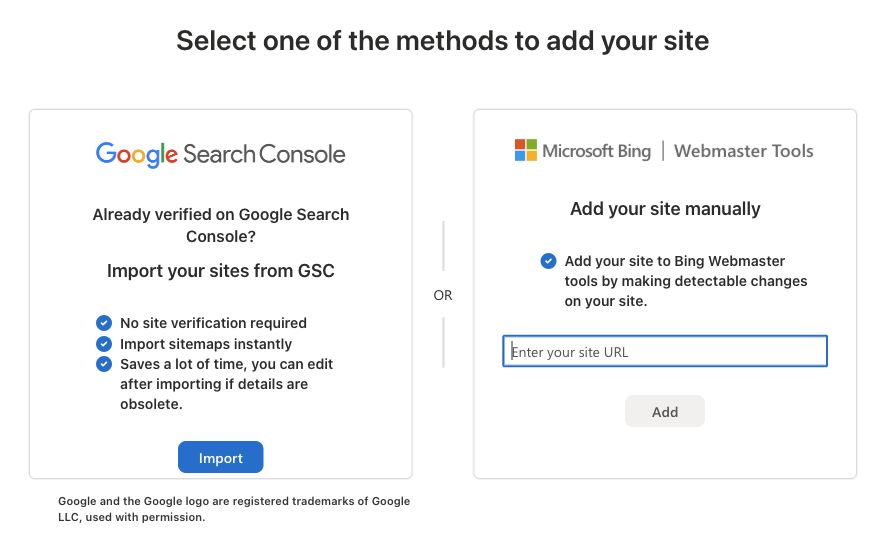
Option A: import from Google Search Console
- Choose Import under Google Search Console.
- Sign in to the Google account that already has access to the verified property.
- Read the permission request: the connection lets Bing retrieve your site list and sitemaps. Authorize it only if you accept that access.
- Select your site and confirm the import.
Imported sites are automatically verified through Search Console. Sitemaps can also be imported; check them in step 2. This does not turn Google’s clicks or rankings into Bing performance data. Microsoft’s import instructions.
If your site is missing: check the Google account and the property’s verification. Avoid adding random URL variations to work around the problem.
Option B: add and verify manually
Enter the URL under Add your site manually, then click Add. Follow one of the methods Bing actually offers, such as an HTML tag, XML file or DNS verification.
For WordPress sites already using Rank Math, the tag is convenient: copy the content value from the msvalidate.01 tag. Open Rank Math SEO → General Settings → Webmaster Tools, enter it in the Bing field and save. Clear the site cache before returning to click Verify. If you use another SEO tool, use its equivalent verification field. Rank Math documentation, Bing verification section.
Do not paste the tag into an article. For file verification, BingSiteAuth.xml must open at Bing’s specified address, not simply exist in the media library. For DNS, copy the exact type, name and value supplied by Bing without replacing existing records. Keep the verification proof in place. Official verification help.
Success check: your site is selectable and its tools are available. If iMasterWeb needs to help, send the method and error message, not your passwords.
2. Check or submit the sitemap
Your XML sitemap is a technical list of URLs. Find its actual address instead of submitting the home page or an address that does not exist.
- Locate the sitemap URL in your CMS or SEO tool. In Rank Math, check Sitemap Settings.
- Open it in a browser: it should be public and show XML or an index of sitemaps.
- In Bing, choose Sitemaps.
- If the correct sitemap already appears after import, check its status. Otherwise, click Submit sitemap, paste its full URL and click Submit.
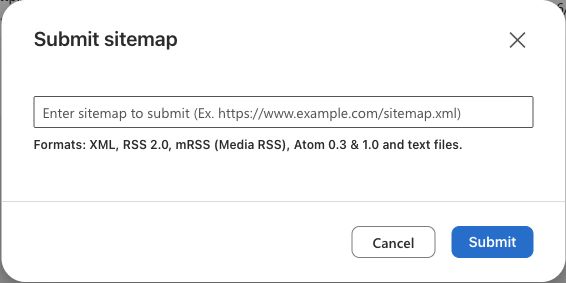
Example: https://www.example.com/sitemap_index.xml. Your setup may use a different path, such as /wp-sitemap.xml. Do not guess. A dynamic sitemap updates with your content, so the same file does not need a fresh submission after every publication.
Success check: the file appears and reaches Success after processing. If it fails, check its address, public availability and robot access. Discovered URLs are not necessarily indexed pages. Microsoft’s sitemap guidance.
3. Inspect an important page
Open URL Inspection and enter the final URL of your home page or a service page. Run the inspection and read the result before submitting anything again. Where a live check is offered, use it to compare Bing’s known version with the current page.
Ask three questions: can a signed-out visitor access the page, should it appear in search, and does Bing know the correct address? A thank-you page or customer account area has a different purpose from a public service page.
- Unknown URL: check its sitemap entry and add a link from a relevant page on your site. Use the submission option if available.
- Crawl block or noindex: identify the setting and its purpose before changing it.
- Redirect: inspect the destination and use the final URL in your links.
- 404 or server error: first check whether an ordinary visitor can open the page.
An accepted submission means the request was received, not that the page will be indexed immediately. Record the date and check later rather than sending repeated requests.
4. IndexNow: notify changes without promising indexing
A sitemap describes your content; IndexNow announces that a URL changed. It can notify participating search engines when content is added, updated or removed. It replaces neither your sitemap nor useful content.
- Check whether your CMS or plugin already has an IndexNow integration.
- Follow its setup process; the integration may manage a key and ownership proof for you.
- After publishing or making a meaningful update, check submissions in the integration and Bing’s IndexNow section.
If nothing is configured, ask iMasterWeb which integration suits your installation before adding a plugin. Avoid several systems sending the same notifications. The documentation specifies that HTTP 200 confirms receipt, not indexing. IndexNow documentation.
5. Read Search Performance and choose an action
Open Search Performance, choose a period and review the available page and keyword breakdowns. Read the report’s scope or source filter too: the surfaces measured may change.
- Impressions: appearances counted within the report.
- Clicks: clicks attributed to your website within that scope.
- CTR, where offered: clicks divided by impressions. Fictional example: 5 clicks from 250 impressions equals 2%.
Fictional example: an emergency plumbing page gets impressions but few clicks. Check the queries and position where available, then how the title and content match the need. If searches concern a different location or service, clarify your offer rather than repeating a keyword more often.
Do not compare Bing and Google numbers without aligning the period and scope. More clicks are not necessarily more enquiries: keep a record of the contacts your business actually receives.
6. Use additional tools when you need them
- Site Explorer: review URLs and statuses known to Bing to identify groups of affected pages.
- Site Scan and Recommendations: inspect reported issues and examples. Prioritize a broken essential link or inaccessible service page over a minor detail; a score is not a diagnosis.
- Backlinks: discover links known to Bing. This is not an exhaustive inventory of the web or, by itself, a reason to remove links.
- Keyword Research: explore ideas, then check whether they address your customers’ needs before creating content.
AI Performance: where present, this preview report describes some citations of your pages across supported AI experiences, including Microsoft Copilot and Bing AI summaries. A citation is not a click or a sale, and this is not a universal dashboard for all AI services. Use it as complementary information. Microsoft’s report announcement.
A simple first-month routine
- Setup day: verified site, checked sitemap, inspected home page and main services.
- The following week: review errors and discovery of essential pages.
- Weekly: review Search Performance and record one page to improve, with a reason.
- After a month: compare equal-length periods if volumes allow, and connect observations to real enquiries.
Frequently asked questions and troubleshooting
My dashboard is empty. Did setup fail?
Not necessarily. Check the selected site and date range first. A new site may have no appearances or clicks yet. Inspect a URL and check the sitemap to distinguish missing data from a technical obstacle.
Should I change Crawl Control to speed up SEO?
This is not a launch requirement. Keep default settings unless a diagnosis justifies a change. Altering crawl frequency does not force indexing or better rankings.
Is this my local business listing too?
No. Webmaster Tools concerns the website; a local business listing serves a different purpose. Start here with clear services, location coverage and consistent contact details.
What should I send support if I am stuck?
Your site URL, the step, the exact message and a focused screenshot. Mention whether you imported from Google or chose manual verification. Contact iMasterWeb.